This post is part 1 of a four-part series Locking Down Your VPS.
The Story Behind This Series
My first VPS wasn't something I set up myself. A friend provisioned it, hardened it, and basically handed me the keys. Every so often he'd casually mention that I had 27 packages waiting for updates and remind me that I needed to ensure I log in and run updates regularly as well as a reminder of the last time I signed in. That had me thinking...
How does he know that?
That question turned into this series.
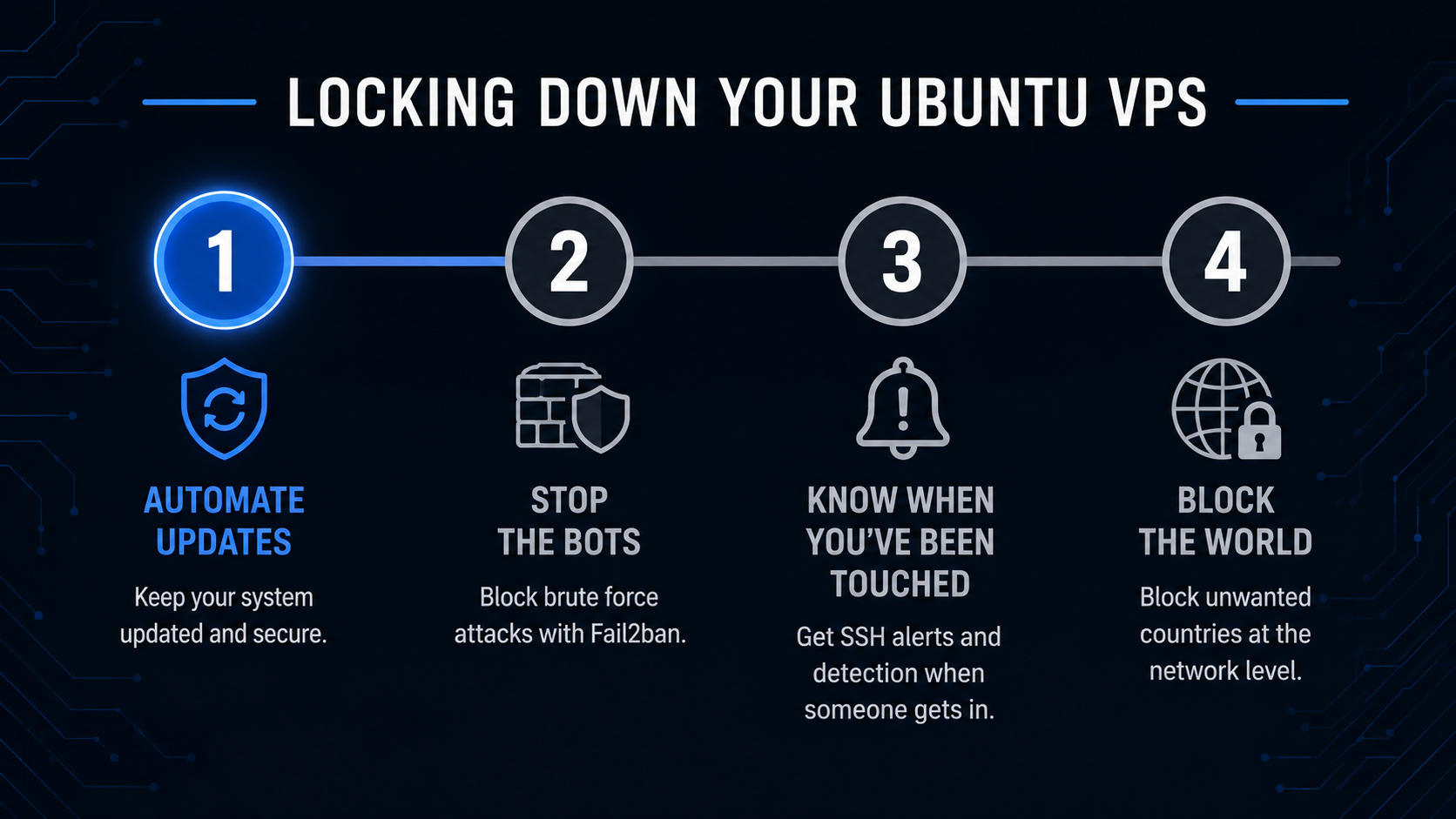
Why Updates Matter (More Than You Think)
Ubuntu won't automatically keep every package current unless you configure it to. It's essentially possible to spin up a VPS, install Docker, Ghost, Nginx, and never think about updates again. Six months later you're still running software with publicly known vulnerabilities.
The Moment your server goes public bots are scanning the internet 24/7 looking for those vulnerabilities. They don't care who you are, they just look for weak links in the chain.
Daily updates close the window between "patch released" and "exploit in the wild" as tight as it can reasonably get without introducing the risk of constant breaking changes from rapid-fire updates.
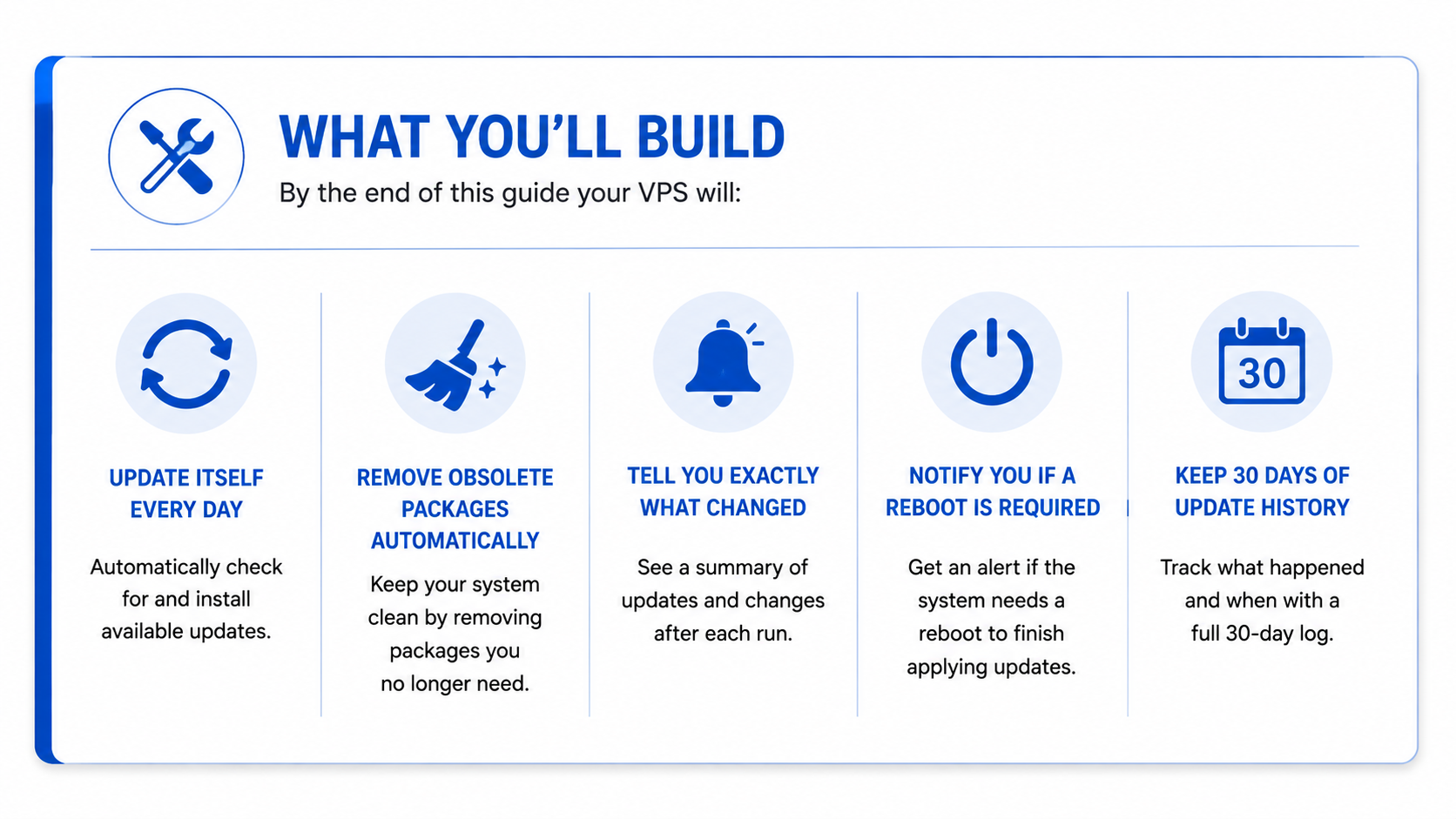
What You'll Build
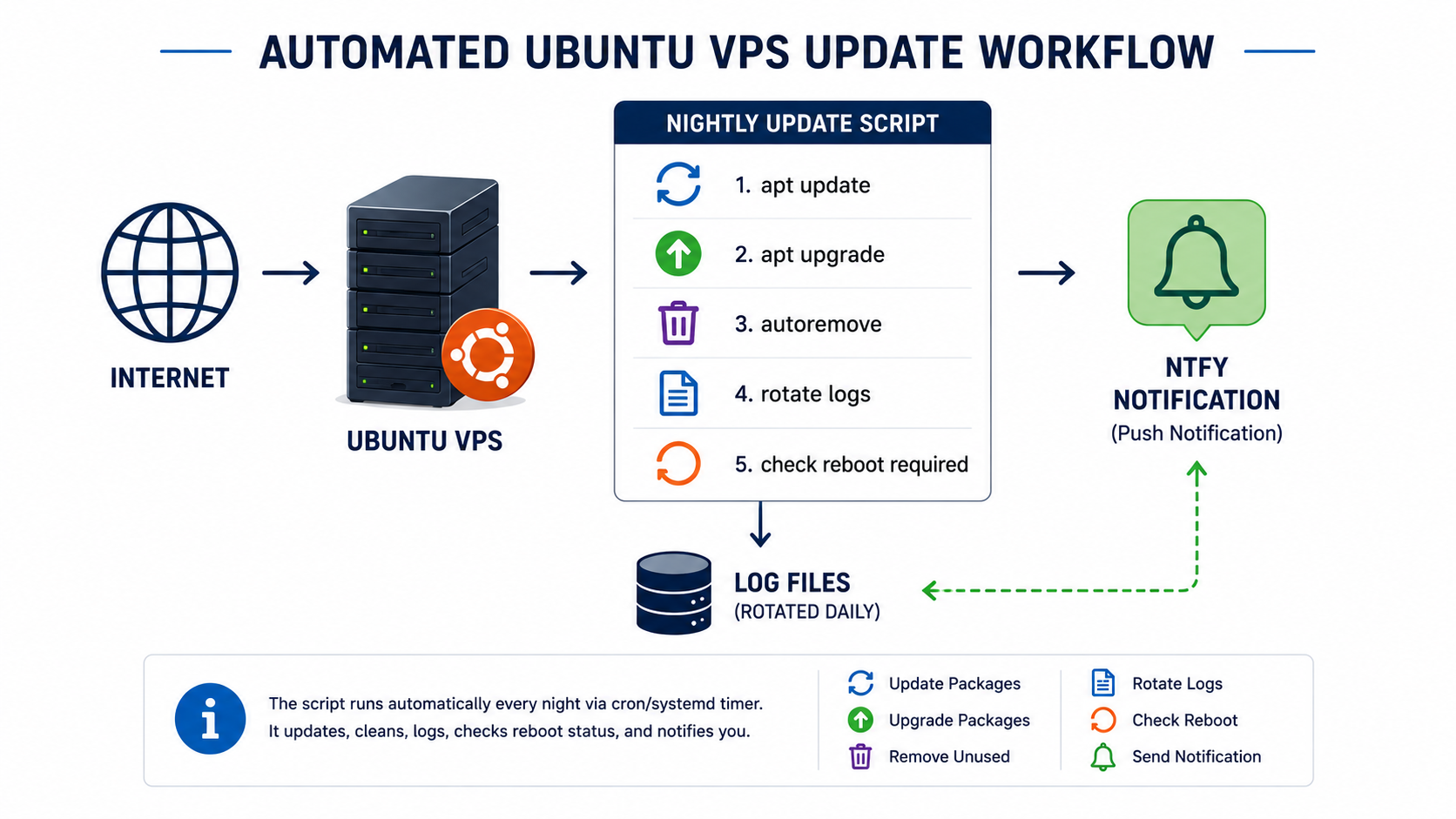
What Happens Every Night
The update script handles the full cycle in one shot:
- Refreshes the package list: pulls the latest available versions from Ubuntu's repositories
- Applies available upgrades: installs all pending security and feature updates
- Applies distribution-level upgrades: handles updates that involve package dependency changes
- Cleans up: removes unused packages and clears the package cache
- Checks if a reboot is required: detects kernel or core package updates that need a restart to take effect
- Rotates old logs: keeps 30 days of update logs and deletes the rest
- Sends a push notification: fires an Ntfy alert on completion, or immediately if something goes wrong
Before You Start: Ntfy Credentials
The script's notification step reads a shared credentials file at /root/detection/.auth. Create it now, or the script will still run and patch the system, it just won't be able to send you a push:
sudo mkdir -p /root/detection/logs
sudo chmod 700 /root/detection
sudo chmod 700 /root/detection/logs
sudo nano /root/detection/.auth
Two lines: Ntfy username on line 1, password on line 2.
yourusername
yourpassword
sudo chmod 600 /root/detection/.auth
If you're following this as part of the full "Locking Down Your VPS" series, this same file gets reused in the SSH alerts and intrusion detection post; you won't need to set it up twice.
The Script
Save this as /root/scripts/vps-auto-update.sh on your server, creating the directory first if it doesn't exist:
sudo mkdir -p /root/scripts
sudo chmod 700 /root/scripts
Every setup script in this series lives in /root/scripts/ from here on: one consistent, auditable location instead of scripts scattered wherever they happened to get uploaded. Update the NTFY_URL at the top with your own Ntfy server and topic before running it.
#!/bin/bash
# =============================================================================
# VPS Auto-Update Script: Ubuntu 22.04 LTS
# Handles system package updates, cleanup, and reboot detection
# Schedule via cron: see instructions at the bottom of this file
# =============================================================================

# --- CONFIGURATION ---
LOG_DIR="/var/log/auto-update"
LOG_FILE="$LOG_DIR/update-$(date +%Y-%m-%d).log"
KEEP_LOGS_DAYS=30          # How many days of logs to retain
REBOOT_IF_REQUIRED=false   # Set to true to allow automatic reboots

# --- NTFY NOTIFICATION CONFIG ---
NTFY_URL="https://your-ntfy-server.com/vps-updates"
AUTH_FILE="/root/detection/.auth"

# --- SETUP ---
mkdir -p "$LOG_DIR"
exec > >(tee -a "$LOG_FILE") 2>&1

log() {
    echo "[$(date '+%Y-%m-%d %H:%M:%S')] $1"
}

separator() {
    echo "=============================================="
}

notify() {
    local title="$1"
    local message="$2"
    local priority="${3:-default}"
    local tags="${4:-}"

    if [ ! -r "$AUTH_FILE" ]; then
        log "WARNING: cannot read $AUTH_FILE; skipping ntfy notification."
        return
    fi

    local ntfy_user ntfy_pass
    ntfy_user=$(sed -n '1p' "$AUTH_FILE")
    ntfy_pass=$(sed -n '2p' "$AUTH_FILE")

    curl --silent --output /dev/null \
        -u "$ntfy_user:$ntfy_pass" \
        -H "Title: $title" \
        -H "Priority: $priority" \
        ${tags:+-H "Tags: $tags"} \
        -d "$message" \
        "$NTFY_URL"
}

# --- START ---
separator
log "AUTO-UPDATE STARTED"
separator

log "Refreshing package lists..."
apt-get update -q
if [ $? -ne 0 ]; then
    log "ERROR: apt-get update failed."
    notify "VPS Update FAILED" "apt-get update failed on $(hostname). Check $LOG_FILE." "high" "warning,skull"
    exit 1
fi

log "Applying available upgrades..."
DEBIAN_FRONTEND=noninteractive apt-get upgrade -y -q \
    -o Dpkg::Options::="--force-confdef" \
    -o Dpkg::Options::="--force-confold"

log "Applying distribution-level upgrades..."
DEBIAN_FRONTEND=noninteractive apt-get dist-upgrade -y -q \
    -o Dpkg::Options::="--force-confdef" \
    -o Dpkg::Options::="--force-confold"

log "Removing unused packages..."
apt-get autoremove -y -q

log "Cleaning package cache..."
apt-get autoclean -q

# --- REBOOT CHECK ---
separator
REBOOT_STATUS="No reboot required."
if [ -f /var/run/reboot-required ]; then
    log "REBOOT REQUIRED: a kernel or core package update is pending."
    REBOOT_STATUS="Reboot required (pending kernel/core package update)."

    if [ "$REBOOT_IF_REQUIRED" = true ]; then
        log "Automatic reboot is enabled. Rebooting in 60 seconds..."
        REBOOT_STATUS="Reboot required, automatic reboot in progress."
        shutdown -r +1 "VPS auto-update: scheduled reboot for pending kernel update"
    else
        log "Automatic reboot is DISABLED. Log in and run 'sudo reboot' when ready."
    fi

    if [ -f /var/run/reboot-required.pkgs ]; then
        log "Packages requiring reboot:"
        cat /var/run/reboot-required.pkgs | while read pkg; do
            log "  - $pkg"
        done
    fi
else
    log "No reboot required."
fi

# --- LOG ROTATION ---
separator
log "Rotating logs older than $KEEP_LOGS_DAYS days..."
find "$LOG_DIR" -name "update-*.log" -mtime +$KEEP_LOGS_DAYS -delete

# --- DONE ---
separator
log "AUTO-UPDATE COMPLETE"
separator

notify "VPS Update Complete" "$(hostname): update finished at $(date '+%Y-%m-%d %H:%M:%S'). $REBOOT_STATUS" "default" "white_check_mark"
A Note on Automatic Reboots
You'll notice REBOOT_IF_REQUIRED=false in the config. I left this off deliberately.
Kernel updates require a reboot to take effect, but automatically rebooting a production server at 2am means any services that don't start cleanly on boot will silently fail until you notice. I'd rather get a notification that a reboot is needed and do it manually on my own schedule.
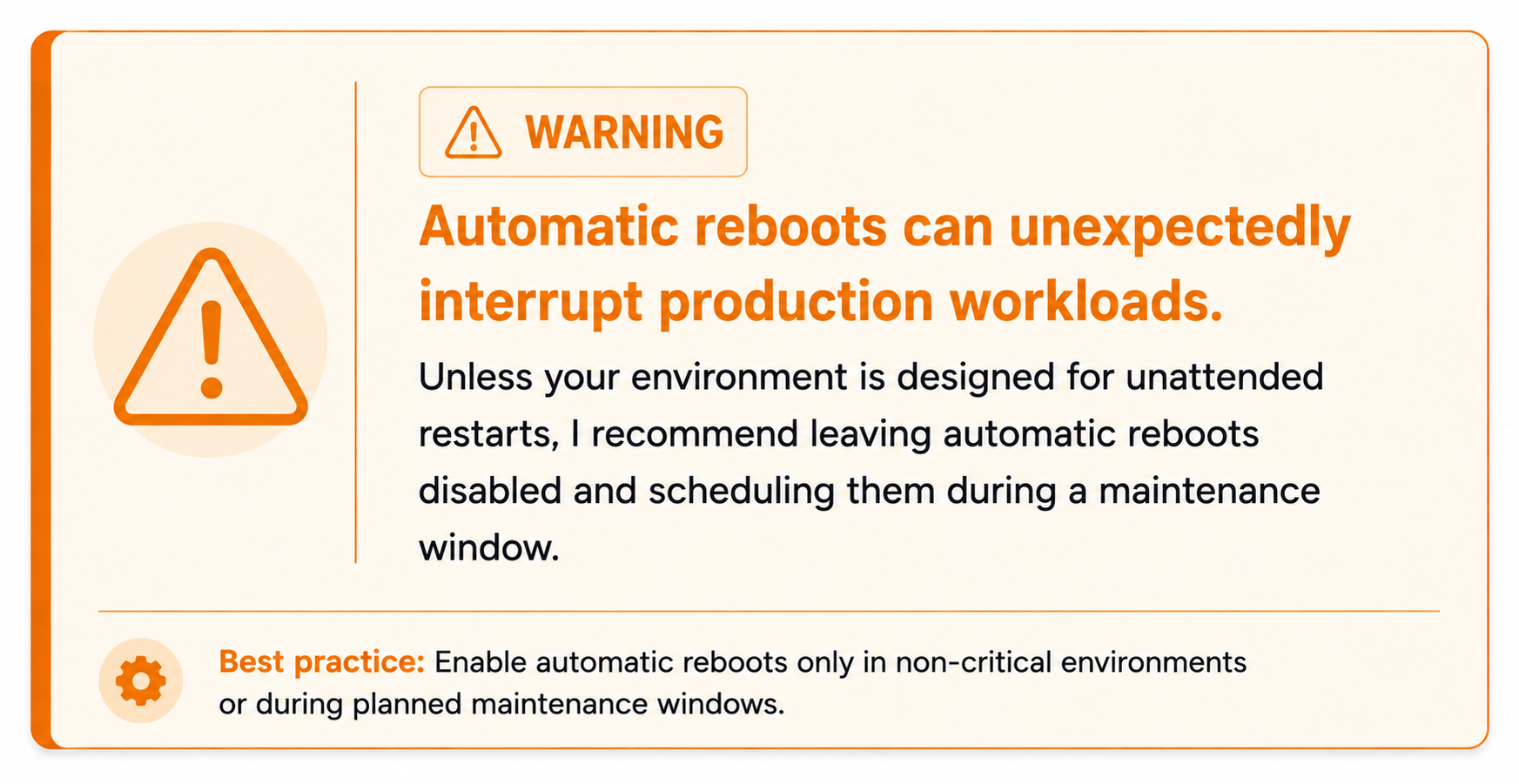
If you're running a non-critical server and want full automation, flip it to true; the script will schedule the reboot 60 minutes after the update completes, giving you time to cancel if needed.
Bonus: Updating Ghost Automatically
If you're running Ghost CMS on this server, system updates won't touch it; Ghost manages its own versioning through Ghost CLI. Here's how to update Ghost manually, and how to fold it into the automation.
Manual Ghost Update
Ghost must be updated as your Ghost system user, not root:
# Switch to your Ghost user and navigate to the install directory
sudo -u <ghost-user> bash -c "cd <ghost-install-dir> && ghost update --no-prompt"
Ghost CLI handles everything: downloads the new version, runs database migrations, and restarts the service. The --no-prompt flag skips confirmation so it can run unattended.
Check Your Ghost CLI Version First
Before updating Ghost, make sure your Ghost CLI is current:
sudo npm install -g ghost-cli@latest
Running an outdated CLI against a newer Ghost version can cause update failures. Always update the CLI first.
Add Ghost to the Auto-Update Script
Add this block at the end of your vps-auto-update.sh, before the final notify call:
# --- GHOST UPDATE ---
GHOST_DIR="<ghost-install-dir>"
GHOST_USER="<ghost-user>"

log "Checking for Ghost updates..."
sudo -u "$GHOST_USER" bash -c "cd $GHOST_DIR && ghost update --no-prompt" >> "$LOG_FILE" 2>&1
if [ $? -eq 0 ]; then
    log "Ghost updated successfully."
else
    log "Ghost update failed or already on latest version."
fi
⚠️ Ghost updates occasionally involve breaking changes between major versions (v4 → v5, for example). Before enabling this in production, check the Ghost changelog and consider pinning to minor version updates only until you've verified compatibility.
Install and Schedule
Make the script executable:
sudo chmod +x /root/scripts/vps-auto-update.sh
Open the root crontab:
sudo crontab -e
Add this line to run it every day at 2:00 AM:
0 2 * * * /root/scripts/vps-auto-update.sh
Verifying It Works
Don't wait until 2:00 AM for the first run. Trigger it manually:
sudo /root/scripts/vps-auto-update.sh
Then check the log:
ls /var/log/auto-update/
cat /var/log/auto-update/update-YYYY-MM-DD.log
You should also receive an Ntfy notification to your vps-updates topic confirming completion.
What's Next
Keeping your server patched closes the most common attack vector. But it doesn't stop someone from hammering your SSH port with thousands of password attempts. In the next post, we'll set up Fail2ban to automatically ban IPs that are brute-forcing your server.